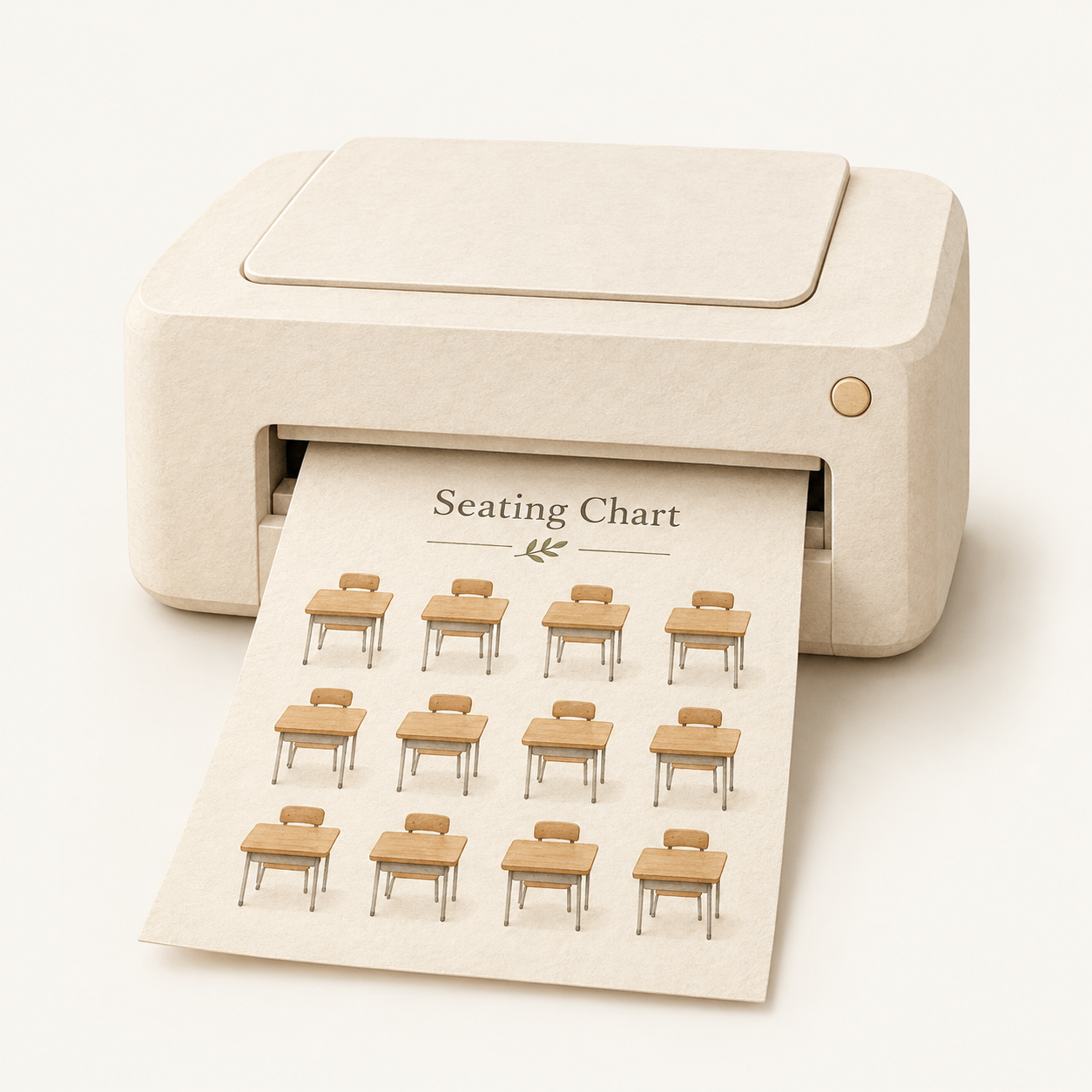
Print or save as PDF
Choose Letter or A4. Print a blank
layout or a chart with student names.
PLAN YOUR CLASSROOM
Paste your class list and arrange the desks to match your room. Set any seating rules, then review and print the chart. You can start without an account.
 Add your
 Move andPrint or save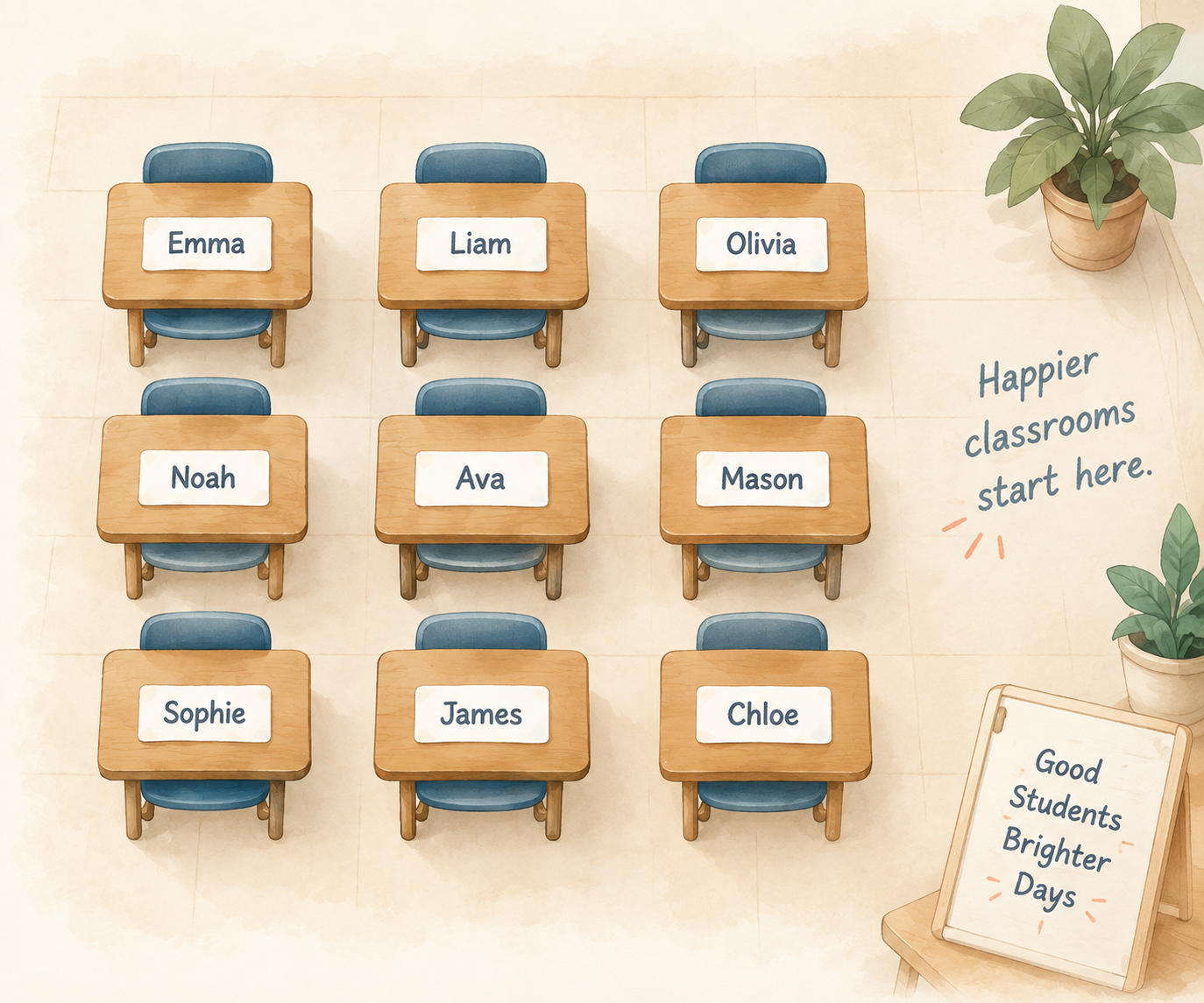
SEATING RULES
Keep a student in a specific seat or stop two students from sitting next to each other. Seatly shows a preview and checks your rules before you apply it. If required rules conflict, Seatly cannot apply an arrangement. It also tells you which preferences remain unmet.
EmmaLiamNoahOliviaJamesAvaSophieDanielMiaEmmaLiamOliviaDanielMiaAvaNoahSophieJamesSame nine students.
Emma stays put.
In this fictional example, neighbors sit immediately side by side in a row. The after chart meets all three rules. These names are not added to your class.
DESK LAYOUTS
Choose a layout, then move, rotate, or add desks to match your room.
24 desks · 24 seats
Single desks in four rows of six, facing the front of the classroom.
24 desks · 24 seats
Twelve pairs of desks, with a separate seat for each partner.
24 desks · 24 seats
Six groups of four desks. Each desk seats one student.
24 desks · 24 seats
Four groups of six desks. Each desk seats one student.
24 desks · 24 seats
Eight desks on each side and eight across the bottom, with an open front.
0 desks · 0 seats
An empty room with no student desks. Add the desks you need in the editor.
CHOOSE A STARTING POINT
Choose the arrangement that matches the activity, then adjust it to your room and students.
| Layout | A starting point for | What to check |
|---|---|---|
| Rows | Individual desks facing the front. | Check views of the board and access between rows. This layout starts without pairs or groups. |
| Pairs | Two students working side by side. | Each pair has two separate seats. Use Same pair as to keep partners together. |
| Groups of 4 or 6 | Students sharing a small-group activity. | Choose four or six seats per group. Check which way desks face and who needs to sit together. |
| U-Shape | A layout around an open center, with an opening at the front. | Allow enough space in your room; the diagram does not measure aisle clearance. |
FROM CLASS LIST TO SEATING CHART
Illustrated editor example · fictional students
EmmaOliviaNoahJamesSophiePRINTING AND BACKUPS
Print a chart for your classroom and download a backup to keep editing later.
Seatly saves your work in this browser on this device. You do not need an account.
Choose Letter or A4. Print a blank
layout or a chart with student names.
Open Backup to download an editable JSON file.
You can restore it later. A PDF cannot be restored in the editor.
Plans save in this browser, without automatic sync.
Clearing browser data can remove them. Check the save status and keep a backup.
QUESTIONS ABOUT SEATLY
Paste your student names or import a CSV. Choose a layout and add any rules you need, then use Arrange seats. Check the preview and apply it before printing. To assign a seat yourself, select a student and then a seat.
Yes. Add Keep this seat or Not next to rules before arranging seats. Not next to checks the neighbor links shown in the editor; it does not measure distance in your room. Check the results before applying an arrangement. Conflicting required rules can prevent a result.
Open a Rows, Pairs, Groups or U-Shape template for a blank numbered chart on Letter or A4. To include student names, use Print / Export in the editor. You can save a PDF if your browser has that option.
You can open the editor and add your students without an account.
Use Same pair as with a Pairs layout, or Same group as with Groups of 4 or 6. Each student has a separate seat. Review the arrangement before applying it.
Seatly saves plans in this browser on this device. They do not sync automatically, and clearing browser data can remove them. Open Backup to download a JSON copy you can restore later. A PDF cannot restore an editable plan.
Seatly adds desks when you add more students, up to 120 seats. You can also choose Add desks. If a change would exceed the limit, you will see an error and your plan will stay as it is.
Yes. Your student list stays when you move desks. Replacing the layout returns students to Unassigned, and deleting occupied desks asks for confirmation. Read the warning and check your rules after changing the layout.
OPEN THE EDITOR
Add your students and choose a desk layout.
You can check the arrangement before printing.
Compare classroom seating arrangements, follow the guide to keeping students apart, or find help with printing and editable backups.